
You use your account to:
- log in to the student platform
- consult your Odisee mailbox
- Order your textbooks
- log in to Odisee computers (classrooms, library, ...)
- Use the wifi
- your My admin (self-service requests attestations, timetable, ISP, exam card, exam results...)
- the Toledo learning environment
You log in with [email protected] and your self-chosen password, followed by a confirmation via the KU Leuven Authenticator app when requested.
Information about the MFA on your account can be found on the separate FAQ page about MFA.
You will receive the activation email after Odisee has processed and completed your student enrollment.
- Be sure to check your spam or junk mail first!
- Also consider which personal e-mail address you used to enroll, that is where you will receive the mail!
- If you are looking for the activation mail, use the search word "account" in your mailbox.
ATTENTION! During your online enrollment you received an activation email for a temporary b-account. This is NOT the account to log into the digital applications, this account was only used to enroll you.
If you really can't find the mail, you can request an activation code from https://account.kuleuven.be/ provided your personal e-mail address is known. With this activation code you can then set a password.
- Go to https://account.kuleuven.be/
- click on the tab 'Activate account'
- click on the link 'request'

- You will now see the text "Reset password," but you don't have to worry about that
- Enter the personal email address that was used to enroll
- no need to enter a username
- indicate that you are not a robot
- click on 'Send'
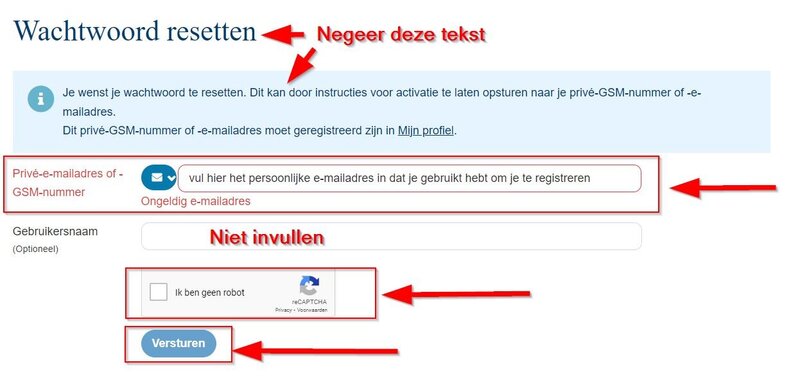
Visit the official KU Leuven page to request a new activation code: https://account.kuleuven.be/requestActivationCode
There you fill in your details and you will automatically receive a new activation code on your private e-mail address that you registered when you enrolled.
Log in with your Odisee email address and your current password. Afterwards you can change your password. You will receive a confirmation on your Odisee-mail address after you have successfully changed your password.
If you can no longer log in, there may be several reasons.
- You are using the wrong username. You log in with your Odisee mail address [email protected]. During your online registration you received an activation email for a temporary b-account. This is NOT the account to log in to the digital applications, this account was only used to enroll.
- you are using an incorrect password. Please note that repeated incorrect login attempts on an Odisee PC or the wifi will lock your account for 16 min. It is best to wait until that time has passed before trying to log in again. If you don't remember your password, please read 'I forgot my password' to learn how to reset it.
- you are experiencing problems with MFA
- your account was blocked for administrative reasons. Under "My account has been administratively blocked" you will find more information about the possible causes.
- suspicious use was detected. You can read under "My password was automatically reset" what to do in that case.
To reset your password, you need to know the cell phone number or private email address associated with your account. This is the cell phone number and email address you provided when you registered.
Go to https://account.kuleuven.be/requestActivationCode and follow the instructions.
If you do not know which cell phone number or which private e-mail address is known to us, you must contact the ICT Service Desk.
When the system detects a login that does not fit your normal usage, you will be required to reset your password. The mandatory reset does not happen due to incorrect passwords.
The system triggers a reset of your account and you will receive an email at your private email address associated with your account saying"Your password has been reset".
-
Click on the link in the email to the reset page.
-
You will receive a new email with an activation code at your known private email address.
-
Enter the code on the reset page and choose a new password.
During such a mandatory reset, you can still log in via the Authenticator app. On the Odisee PCs and wifi, you can no longer log in until after you have done the reset.
There are several possibilities as to why your account is administratively blocked:
-
You did not submit your Individual Program of Study (ISP) on time.
-
You have an outstanding tuition fee that was not paid on time.
-
You failed to pay a course-related invoice.
-
You are enrolled in a work track and you have not submitted your statement "student in a work track".
In this case, contact the Office of Student Administration at [email protected]
If your account has been blocked, you no longer have access to the student platform, Toledo, the applications in My Portal, your Odisee email and your files on OneDrive or in Teams.
- When you graduate
Your account will be closed at the end of the academic year. - When you unenroll
Your account will be closed 7 days after you unenroll.
Attention:
When your account is closed, you can no longer access your Odisee email and your files on OneDrive or in Teams. If you still need data stored there somewhere, you better copy it in time. More info can be found here.
Create a ticket through the https://myaccount.odisee.be/account-probleem portal or stop by your campus' local Service Desk. Below is where to find the Service Desk per campus
- Brussels room B01-01 in "T'Serclaes" building
- Ghent room A1T2 in Building A
- Aalst room 2Z38 in the main building
- Sint-Niklaas room 022